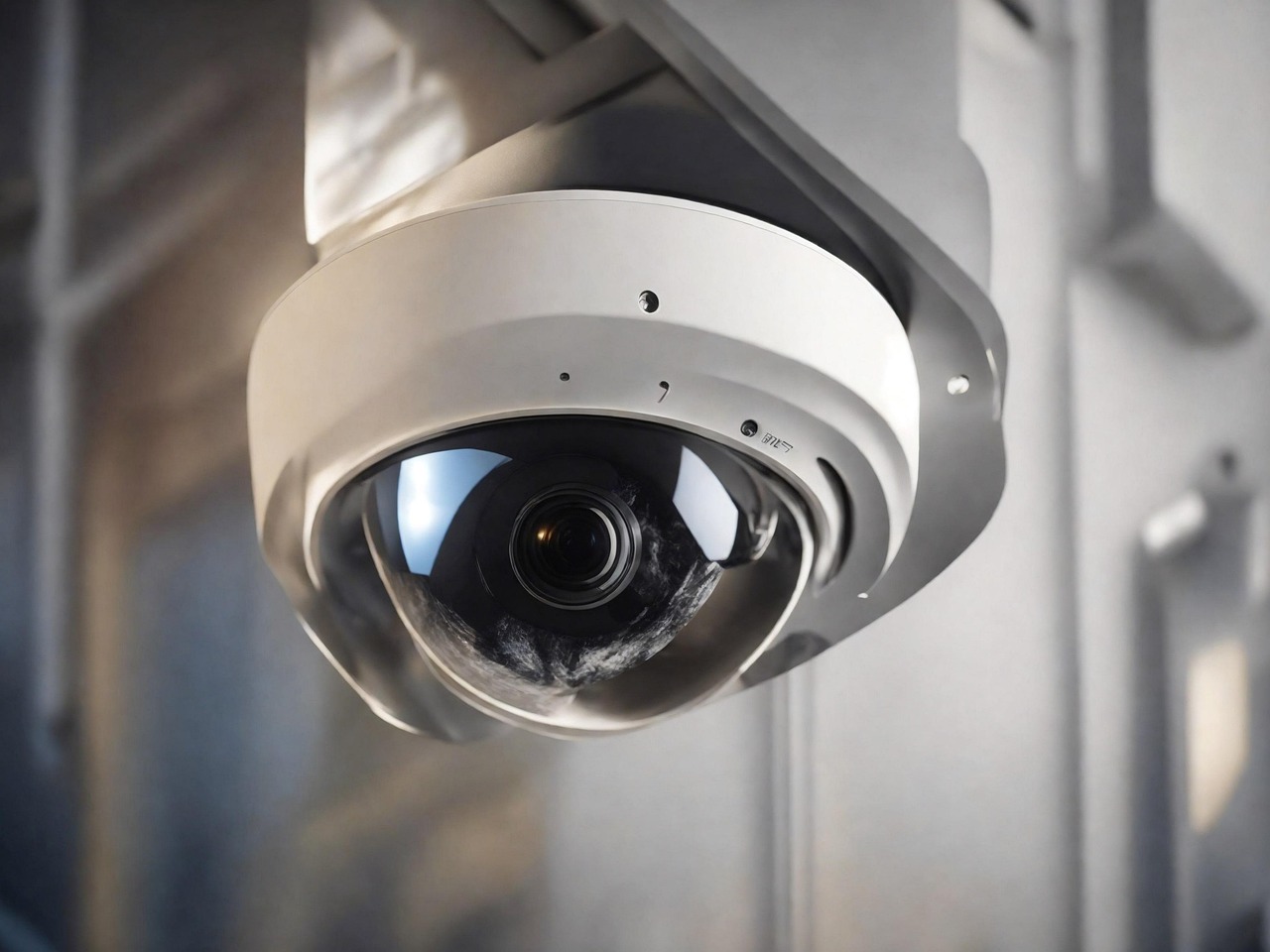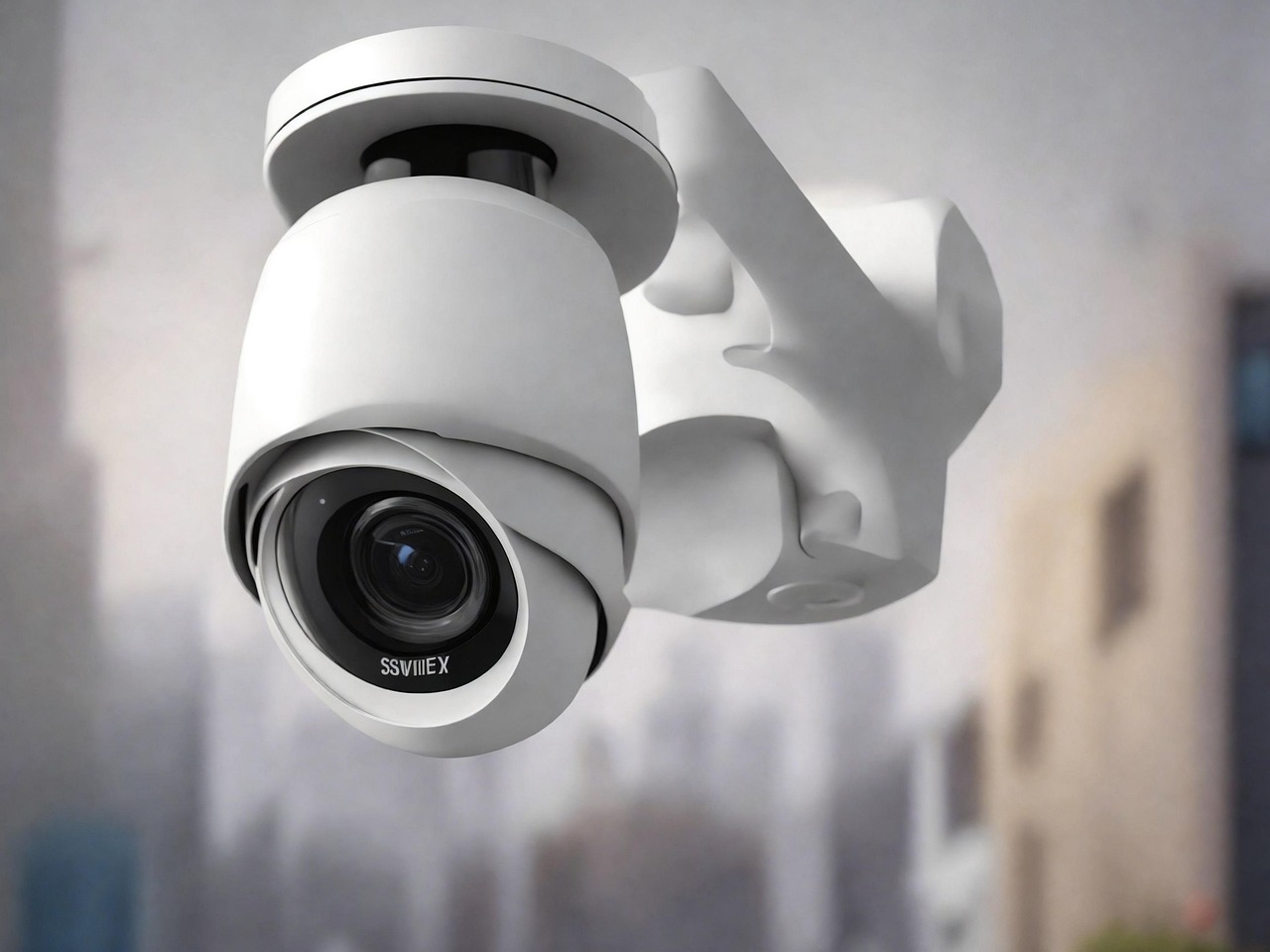
Being unable to view your CCTV cameras remotely is one of the most stressful problems for businesses and homeowners.


Being unable to view your CCTV cameras remotely is one of the most stressful problems for businesses and homeowners. You rely on remote access to monitor your office, store, warehouse, or home — and when it stops working, your security is immediately compromised.
In most cases, the cameras are still recording, but the network connection that allows you to view them remotely has failed.
This guide explains why remote viewing stops working and how to fix it properly.
This guide explains why remote viewing stops working and how to fix it properly.
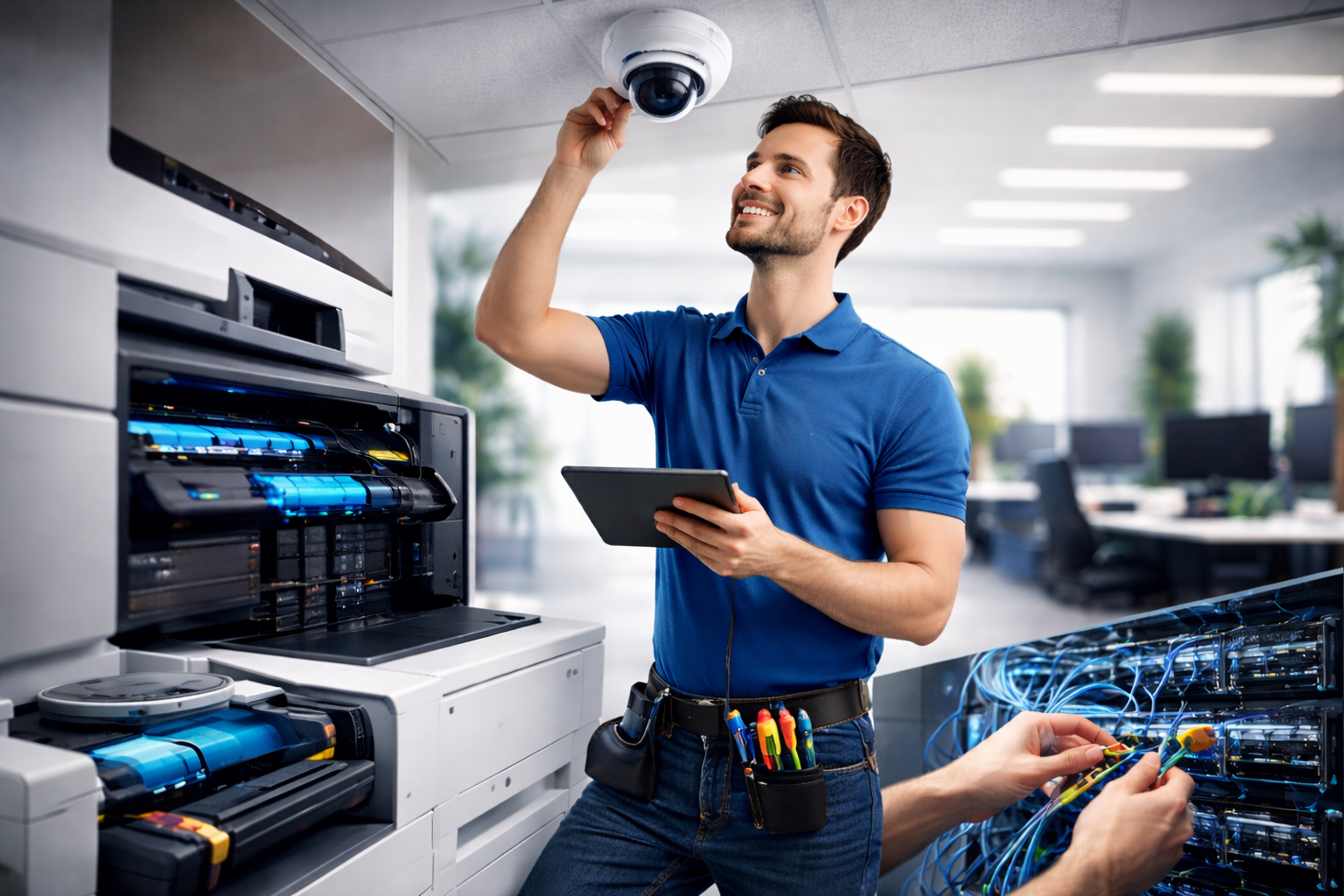
Why CCTV Remote Viewing Stops Working
CCTV systems depend on internet connectivity, router configuration, and stable IP addresses. If any part of this chain breaks, remote viewing fails.
Here are the most common causes:
1. Internet IP Address Changed
Most internet providers give a dynamic IP address that changes when:
- The router restarts
- The internet drops
- The ISP resets the line
When the IP changes, your camera app can no longer find your CCTV system.
2. Router Port Forwarding Is Not Set
For remote viewing to work, your router must allow external traffic to reach the CCTV recorder (NVR or DVR).
If port forwarding is:
- Missing
- Deleted
- Incorrect
Then remote access will fail.
3. Camera System Lost Network Connection
If the CCTV system:
- Rebooted
- Lost Wi-Fi
- Has bad cabling
It may no longer be connected to the internet.
4. ISP Blocking Ports
Some internet providers block ports used by CCTV systems, especially on residential connections.
5. App or Cloud Service Issue
Many cameras use:
- Cloud services
- Mobile apps
- Vendor servers
If these services fail, remote access will also fail.
Step 3 — Remove “Offline” Status
On Windows:
Control Panel → Devices & Printers → Right-click printer → See what’s printing → Uncheck Use Printer Offline
On Mac:
System Settings → Printers → Remove printer → Add it again
Step 4 — Update or Reinstall Drivers
Old drivers cause unstable connections. Always install the latest version from the manufacturer’s website.
Step 5 — Use a Static IP (Business Use)
For offices, assign the printer a fixed IP so it never changes.
How to Troubleshoot CCTV Remote Viewing
Step 1 — Check If Cameras Work Locally
Step 2 — Check Internet Connection
Step 3 — Check the Router
Step 4 — Restart CCTV System
Step 5 — Reconnect the App
Why This Keeps Happening
Most CCTV installations fail because:
They were installed without proper network configuration
No static IP or dynamic DNS was set
Routers were never secured
The system was not designed for remote access
This causes repeated outages.
Why Professional IT Support Matters
CCTV is not just about cameras — it is about:
Networking
Internet routing
Firewall rules
Device stability
AetherGeeks ensures:
Your cameras stay online
Remote viewing works reliably
Network settings are correct
Your security is not compromised
When to Contact AetherGeeks
If your CCTV:
Works locally but not remotely
Keeps disconnecting
Shows cameras offline
Cannot be accessed outside your building
You need professional network-based CCTV support.
Need Help?